Sunday, August 11, 2013

Enhancement using Fourier transform

Some images contain unwanted repetitive patterns like lines. Well, this was never a problem for our experts in image processing. These unwanted patterns can be removed by masking or covering the frequencies seen in their Fourier domain.[1] This activity discusses how it can be done.

To know the desired filter mask to remove the repetitive pattern, we must understand first the convolution theorem.[1] For that, what we can do first is to observe the FFT of different repetitive patterns and convolution of some images.


Pair of dots and other pair-figures along the x-axis

First, we were asked to create binary image of two one-pixel-dots symmetric about the center along the x-axis. The FFT of this image as shown below consists of alternate black and white vertical lines.

Binary of two dots symmetric along the x-axis (left) and the FFT of that image (right). 

The dots were replaced by circles of different radius. Just like the FFT of only one circle, as the radius of the circle is increased the pattern observed on its FFT become smaller. In addition, black and white vertical patterns were also observed on their FFTs. As you scroll down, same thing happen for other images like two squares and two Gaussian circles. 

Images of two circles of different radius and their corresponding FFTs.

Images of two squares of different length and their corresponding FFTs.

Images of two Gaussian circles of different sigma and their corresponding FFTs.


How about patterns along the y-axis?

What if the figures/patterns were along the y-axis? We could infer that instead of vertical black-and-white patterns, their FFT would have patterns along the horizontal. To confirm our guess, we get the FFTs of images with patterns along the y-axis as shown below.

So, our guess was right!


Convolution with image having Dirac deltas in random position

Image with dimension of 200x200 pixel containing ten 1’s or white dots placed in random locations was created. The dots will approximate Dirac deltas[1]. Another image of same dimension with any 5x5 pixel pattern on its center was created.

5x5 pattern

The two images were convolved and the resulting image is presented below. We can observe that in convolution output image, the pattern took up the Dirac delta positions. This result is just what is expected considering the convolution theorem.

Image of pattern, image with 10 random Dirac delta locations and the convolution output. 


Horizontal and vertical patterns

Horizontal and vertical repetitive patterns were created by making equally spaced 1’s along the x- and/or y-axis. For vertical or horizontal patterns, the FT is shown below. It can be observe that when the image has horizontal patterns, most of the information of its FFT was found along the x=0 axis. While the image with vertical patterns has most of the information of its FFT along the y=0 axis.

Images with vertical (up) and horizontal (down) patterns with their corresponding FFTs. 

For combined vertical and horizontal pattern with different spacing, the FT results to the following. As the spacing is decreased, the spots in the FFT pattern lessens. Or in other way of observing it, as the pattern in the real space decreases, the pattern in the frequency space increases.

Horizontal and vertical lines of different spacing and their corresponding FFTs. 


Lunar landing scanned pictures: Line removal

In some images, we encounter some unwanted lines. We were given an image captured outside our planet described as "Lunar Orbiter image of one of the craters in the far side of the moon". It contains some unpleasant horizontal lines and we would like to remove those. Since we have known where the information of the horizontal lines in the Fourier domain, the mask that should apply will be that could cover it (white line along the vertical). The filtering was illustrated in the figure below.

FFT of the image (left) and masked FTT (right). 

The original and the resulting image are as follows:

How cool was that? Lines was no longer seen on the processed image :)


Oil on canvas: Weave modelling and removal

We have another test subject seen below - the detail of Frederiksborg, oil on canvas by Dr. Vincent Daria. The image contains weave patterns and we must put some filter mask to remove these unwanted patterns on the painting. 


The image was first read as grayscale and the FFT of the image was shown below. Unlike other FFTs, this contain bright dots scattered around with somekind of arrangement. 

FFT of the Frederiksborg detail. 

It is known that most of the information about the image was located at the center of its FFT.[2] So we thought of making a mask that will cover most of the FFT leaving only significant portion at the center. The mask will not just cover unnecessary information about the image, but will also be easy to apply to the FFT. 

First filter mask (left) and the masked FFT (right). 

However, we are also asked to get the inverse FFT of the filter mask, but it just won't give us anything. So, another filter mask, containing dots that will only cover the bright white dots of the FFT, was used. 

Second filter mask (left) and the masked FFT (right).

The color of the second mask was inverted and when the inverse FFT of it was obtained, the output look something like the weave pattern. Huh, interesting! :)

Inverse FFT of the second mask (left) with its zoomed in version (right). 

The image of the painting in grayscale is shown below.


Now applying the filter masks...

Resulting grayscale image applying the first filter mask (top) and second filter mask (bottom). 

I think it was really a good idea to use the second mask because it resulted to better enhanced image. Both are able to remove the weave pattern but the second was not that blurry compared to the first. Maybe because there been much information lost when the first mask was used. 

Hmm.. Recently, I realized that my data has been so dull, they contain no color at all.. Luckily, I have learned to manipulate image colors using Scilab... 

TADAH! 

Resulting image applying the first filter mask (top) and second filter mask (bottom). 

I really like the result of using the second filter :) 

For this activity, I thank Joshua for all the help on debugging my code. For the knowledge on how to use Scilab in managing the color channels of the image, I would like to thank Floyd. 

I would give myself a 11/10 for this activity for accomplishing all the goal. A bonus of 1 point for doing the last part in colors. 
__________
References
[1] Soriano, M. "Enhancement in the Frequency Domain." AP 186 Laboratory Manual. National Institute of Physics, University of the Philippines, Diliman. 2013. 
[2] R. Fisher, et al. Fourier transform. Retrieved from http://homepages.inf.ed.ac.uk/rbf/HIPR2/fourier.htm

Wednesday, July 17, 2013

Fourier Transform Model

We’ve done a lot on image processing; we’ve learned a lot of ways to determine the properties and information about images. Here we would be discussing another way- getting the Fourier domain of the image. Fourier transform is a process of converting signals from a dimension X to dimension of 1/X. For images, this converts the spatial domain of images to the frequency domain. A fast way of implementing FT is through the Fast Fourier Transform algorithm. [1,2] For our fourth activity, the concept of Fourier transform was used for image processing.


Familiarizing with discrete Fourier transform

Fourier transform can be performed in images using Scilab. First, we were asked to get the FFT of different synthetic images with dimension of 128 x 128 pixels. FFT for 2D signals makes use of the function fft2(). The dimension was chosen as such because fft2() was more efficient for images with sizes in power of two. [2] We have learned to use Scilab in make synthetic image of circle. Circles of different radius were produced and FFT would be applied to each. 

Synthetic images of circles with different radius sizes.

Basically, applying FFT in images using Scilab is as follows. Since synthetic images produced from Scilab was purely single channel, no need to read the image in grayscale. Some alterations on the given sample code was made like using the double() function to convert the image matrix values into floats before applying the fft2(). The output of the the fft2() are complex number array so abs() function was used  to compute the magnitude of the complex number. Function mat2gray() was also used to represent the matrix as grayscale image. Finally, image was show using either the functions imshow() or imwrite()

The FFT of the circles resulted like a diffraction pattern when light was made pass through slits: as the radius of the circle was decreased, the pattern became more prominent (fringes became bigger). The output of the FFT below was observed on the corner. Thus the FFT must be shifted to move the information to the center of the image. 

FFT of circles with different radius.

Function fftshift() was used and this results to the output below. 

Shifted FFT of circles of different radius.

A sample Scilab code employing FFT on image is illustrated below


FFT was also applied to letter A with font style Arial and font size of 50 pt. The inverse Fourier transform is the conversion of images from the frequency domain to the spatial domain. This can be done just by using the forward FFT however the image produced is inverted. [2] Applying inverse FFT to the FFT of circle, the output observed just looks its original image. When it was applied to the FFT of letter 'A' image, it resulted to an inverted 'A'. 

From left to right, synthetic image of letter A, FFT of 'A' image, shifted FFT of 'A' image, inverse FFT of the FFT of 'A'. 


Convolution: Simulation of an imaging device

Convolution is a linear operation that "smears" one function to another. The output function will look like the both the two input functions. This can also be applied to images. A synthetic image of the VIP text shown below was convolved to circles of different radius. 

Synthetic image of the 'VIP' text.

The resulting images were as follows. For this case, the circles were treated as apertures. For small apertures, the image output is blurry. As the aperture gets bigger, the image became clearer. 

Convolution outputs using circles of different radius (refer to first figure for corresponding circle sizes)


Correlation: Template matching

Another linear operation is the correlation. Correlation measures the similarity between the two functions. If there is high resemblance between the two functions, the correlation value is also high. This was done for the first two images below. Correlation was done in Scilab using the following steps. First, getting both the FFT of the letter A image and the complex conjugate of the FFT of the text image. Then multiplying them element by element. Dot product was only applied here. Function conj() was used to compute the complex conjugate. The resulting image is the last image below, which observed to have the brightest spot on the positions of the letter A in the text. This is just what expected since you want to see the correlation between the two images, that is having the letter A. 

From left to right, image of the text, image of letter 'A' and the correlation output.


Edge detection using convolution integral

Edge detection can be done using convolution. The edge to be detected was that from the text VIP while the detector was different 3x3 matrix pattern. For example, as how it should look like in the Scilab code,

pattern = [-1 -1 -1; 2 2 2; -1 -1 -1] 

is the pattern for horizontal edge detector. The edge patterns and the corresponding detected edges were shown below. Explaining the result simply, the detected  edge depended on the pattern used as aperture. Horizontal edges appeared brighter when horizontal edge pattern was used, etc. The whole edge was detected when the spot pattern was used. 

Edge detection from left to right: horizontal, vertical, diagonal down, diagonal up, and spot size.

More code for this activity. I am really slow when it comes to coding so I am very grateful that this activity seemed like a class activity on the day this was sent to us. I thank Anjali Tarun, Alix Santos and Joshua Beringuela for the useful exchange of ideas especially the needed alteration for the code to work :) As usual I thank my blog/code buddy, Nestor Bareza. 

A grade of 10/10 for me in this activity because I am able to do all the tasks..
__________
References
[1] R. Fisher, et al. Fourier transform. Retrieved from http://homepages.inf.ed.ac.uk/rbf/HIPR2/fourier.htm
[2] Soriano, M. "Fourier Transform Model of Image Formation." AP 186 Laboratory Manual. National Institute of Physics, University of the Philippines, Diliman. 2013.

Thursday, July 4, 2013

Histogram Manipulation

It's pretty hard to take pictures at night, images will most likely be dark. I think many will agree with me.. the fun starts at night (just to be clear.. I'm not a party person but I do believe that people had their most fun happenings at night)! But what if your only-once-in-a-lifetime captured moment turnout dark? Worry not! :) Scilab, or for the simplest way possible, advanced image processing software like GIMP has a solution for that :)

Every images, when in grayscale, has its histogram. It is the Probability Distribution Function (PDF) of the image that lets you identify the tonal distribution of an image. Even those dark-looking images still contain information, they were just in the darker range. If the PDF is modified, enhancement on the image can be done.. dark images could look brighter, etc. For our sixth activity, we are asked to enhance pictures through histogram manipulation. This was done by "backprojecting" the grayscale values into the desired Cummulative Distribution Function (CDF) using the CDF of the PDF of the original image.[1,2] This will be further discussed later on. Let us consider this picture. 


Using Scilab, the image was converted to grayscale using the function rgb2gray() and the resulting image is seen below. 


Then, histogram of the grayscaled image was obtained using imhist() function. Scilab Help would always make our life easier. The variable hist that I used in the code (seen far below) represent the distribution itself and the cells are the bins. Unless specified, the bins of the histogram were set in default, which is 256 given the type of our image. So we can plot hist vs. cells or just plot(hist). But to produce a normalized plot, the histogram must be divided by the total number of pixels of the image. The normalized histogram is shown in the figure below


CDF of the histogram was obtained using the function cumsum(). Again normalizing, CDF resulted to the following plot


As you can see, the pixels were concentrated on small values. We want the values to be equally distributed implying that there would be the same amount of dark and light colors. For the desired equally distributed histogram, the CDF is linear as shown in the figure below. Human eye, on the other hand, does not have a linear response. So we will try other CDF - one that represents a sigmoid function. Backprojecting was done by finding the corresponding y-values of the original CDF to the desired CDF then replacing the pixels value with the x-values from the desired CDF. [1]

The desired CDFs showing a linear function (left) and sigmoid function (right). 

I understand well the concept of backprojecting. However, I really have a problem on incorporating it into a code. Ma'am Soriano suggested to use interp() function but it's really hard for me to figure out the correct syntax. For that, I'm really thankful to Nestor Bareza (for like always willingly helping me :)) I also thank Joshua Beringuela for the helpful discussion about the find() function. 

Now the enhanced images are as follows:

Enhanced image using a linear CDF. 

Enhanced image using a sigmoid CDF. 

Comparing with the grayscale of the original picture, the brightening up of the photo was evident. It was observed that for the enchanced image using linear CDF was lighter and revealed more details than that of the sigmoid CDF. Also, to check, the PDF and CDF of the enhanced images are shown below. The CDF of the enhanced image somewhat follows its desired CDF.

PDF of the enhanced images using a linear CDF (left) and sigmoid CDF (right). 

CDF of the enhanced images using a linear CDF (left) and sigmoid CDF (right).

The complete code:


Now using GIMP to modify the histogram..

So I guess the class' favorite subject in this activity is our very handsome classmate, Nestor :P So I thought of doing the same :)

Histogram manipulation can also be done using GIMP. From colors menu, just click the curves. This is the original image with the linear curve..


Adjusting the  curve...


Oops! wrong move. undo undo. Our lovely Tor would not be pleased. hehe


Okay, better :) So yah! You can't really resist this beauty and hotness. XD

If the concavity of the curve shifts upward, the image becomes darker. What you want is the downward concavity in order to make the picture appears brighter and reveal more details. Trying a different curve, image will look something like..


It can also be performed using other freeware image processing software.. so I have Paint.NET installed in my laptop, better try it out! :) The picture of the Siene River with Eiffel Tower in the view is obtained from [3]. Exploring the menus and tools, you would find in Adjustment menu the Curves and just like in the GIMP it can be adjusted.


So yes, it worked just like the GIMP. And again playing with the curve..


Tadah! A pretty nice color combination :)

I'm giving myself 11/10 for successfully enhancing the pictures through their histogram and employing this on other freeware software, Paint.NET :)
__________
References
[1] Soriano, M. "Enhancement by Histogram Manipulation." AP 186 Laboratory Manual. National Institute of Physics, University of the Philippines, Diliman. 2013.
[2] Image Histogram. Retrieved from http://en.wikipedia.org/wiki/Image_histogram
[3] http://shedexpedition.com/wp-content/uploads/2013/05/France-Eiffel-Tower-and-the-Seine-River-at-Night.jpg

Tuesday, June 25, 2013

Area Estimation using Scilab

Our fifth activity in AP 186 is another fun activity. We are asked to estimate the area of synthetic images and try to do the same on images of real places using Scilab programming language. At first, I remember those areas of study that my VIP friends talked about and that I am always fascinated in listening. I think I could not explain it well like they did but basically it's about capturing images of the sea floor because you wouldn't want to touch or maybe destroy the treasures of the sea. Then from the images, not only the area but also depth, surface roughness and other important information can be obtained. These things would enable them to know condition of the corals and the like and would help them preserve our sea treasures. These things just make me realize more the importance of image processing. So, I might have now start doing our task. :)

Have some background study first! Green's theorem is a way to determine the area of a closed path. It is equivalent to the equation [1]


The double integral on left side of the equation represents the area enclosed by a contour. We can relate this to line integral over the contour traversed in counter clockwise direction. In discrete form, area can be computed as follows [1]


where x and y are the collection of points that traces the contour.

Now, for the activity proper..

First, synthetic images of square and circle were produced using the Scilab code (which is done in Activity 3). The images as a whole are both 100 pixels by 100 pixels but the size of the shapes vary. For circle, it has a known radius of 25 pixels and the square has a side equal to 50 pixels. 

ode for simulating a square synthetic image (top) and circle synthetic image (bottom). Beside them were the resulting synthetic images.

Using the function edge() of the scilab, the edge of the synthetic images were obtained. I encountered a problem where the code doesn't accept other images saying that the input image should be a single channel. The function only accept single channel images so you have to make sure to save the image as one channel. In using Paint, you have to choose the monochrome bitmap. Or you can also convert images to one channel in the code, I tried the function rgb2gray(), and it worked :). So moving on.. the edge() function needs an argument for the method parameter which can be 'sobel', 'prewitt', 'log', 'fftderiv' or 'canny' based on the Scilab help. The output images were shown

Resulting edge of the circle using the different methods: sobel, prewitt, log, fftderiv and canny (from left to right).

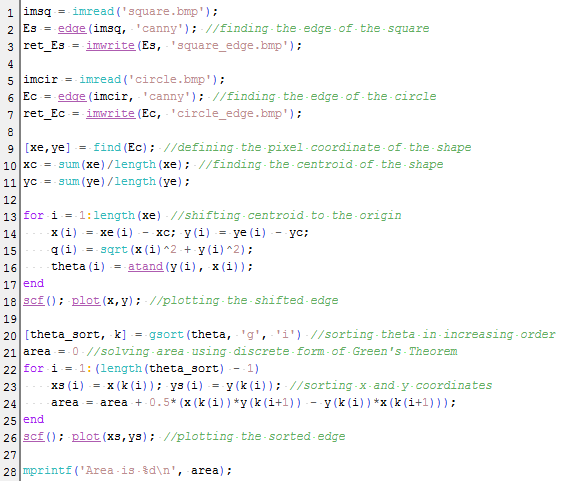
I choose best the 'canny' method because it outlines the edge with only thin line unlike others which are either thick or segmented. Then, the pixel coordinates of the edge are put into an array. The plot of the coordinates were shown in the figure below. However it was noticed that the coordinates were not sorted. To apply the Green's theorem, we want a sorted coordinates which traces off the edge of the shape. Sorting the coordinates with increasing angle would be effective. To do this, the centroid of the shape was found and the whole shape edge was shifted to the origin. The pixel position was then converted to their polar coordinates. Line 13-17 were designated to calculate the radius and angle values. Then, function gsort() was used to sort to increasing angle. What we really want to know is the arrangement of the indices of the angles to know which comes first, second, .. to last. We match this arrangement to the x and y coordinates. We can now apply the discrete form of the Green's theorem. Line 22-25 do the sorting and calculation of area.

Plot of the unsorted (left) and unsorted (right) coordinates of the edge of circle. 

The complete code was also shown below


The area for the circle was obtained to be close to the expected value. To check the credibility of the code, I tried other synthetic images (make the size bigger, shifted the centroid of the shape, other shapes) as shown below


The summary of the expected and actual area and the percent deviation were tabulated below. This shows a significantly small difference to assume that the technique used is reliable in getting the area of an image. 


Now, its time to put this in practical use. What if you want to know the area of a place? your favorite vacation destination? or even your house? I choose Lanao lake, which is the largest lake in the Philippines and its actual area can easily be googled to be 340 sq. km [2]. We would neep the map of Lanao lake, which was again taken from google maps. Using GIMP, the desired area was traced using magic tool and set similar to those of the synthetic images, black background and white shape. This is important since we are using the function edge(). The scale in the map was also used to relate the pixel to its physical area. From the code, the area was 59126.629 in sq. pixels. This can be converted to sq km using the scale found in lower left of the map about 66 pixel : 5 km. The computed area results to 339.34016 sq km with percent deviation of 0.19 to its expected area. We are now more convinced that this is an effective technique.

The map of the Lanao lake on top (taken from google maps [2]), synthetic image tracing the lake (bottom left) and the edge simulated by scilab (bottom right). 

In doing this activity, I have encountered many problems concerning the technique and how to incorporate it to the code. For that, I like to thank with all my heart my classmate, colleague, and best of friends, Nestor Bareza for patiently helping me.

I think I would rate myself 12/10 since I've done the main goals and the bonus part of the activity :)
____________________
References

[1] Soriano, M. "Area Estimation for Images with Defined Edges." AP 186 Laboratory Manual. National Institute of Physics, University of the Philippines, Diliman. 2013.
[2] Lake Lanao. Retrived from http://en.wikipedia.org/wiki/Lake_Lanao
[3] Lanao Lake, Philippines. Retrieved from https://maps.google.com/